Google Website Translator Gadget

Monday, June 27, 2011

How to setup Local Area Connection in Windows 7

Click here to enlarge

As you know Windows 7 is the newer version of windows and contains remarkable effect on every sector of operation. It works very smoothly. Now peoples are converting from Window Xp to Windows 7 or Vista to Windows 7. That's why they need to setup all the features they used in their older version of operating system. From this features Local Area Connection is one important setup. This article will help you to find how to setup Local Area Connection in Windows 7.

What is Local Area Connection:
LAN (Local Area Network) card will automatically install when you setup windows 7. LAN connection is required when you want to share your pc with others in your HomeGroup. Supposes you have two Laptop/Pc and you want to connect them for some purpose say playing multiplayer games (Cod 1,Cod 2,Cod4,Cod5 etc) or to access another Pc ,just setup Local Area Connection. You can also connect your Pc to your friends Pc no meter how far the distance ,connect them with cable connection.


Procedure of setup Local Area Connection:
  • Create WorkGroup:
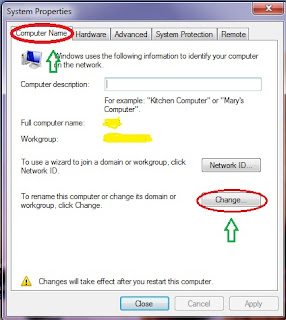
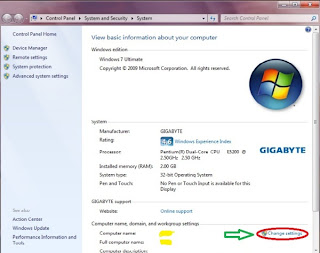
Go to my computer properties.
Click change settings.
Click here to enlarge

See
Click here to enlarge

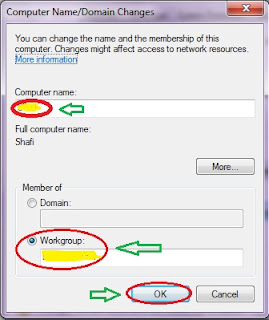
Type your Computer name and WorkGroup
Click here to enlarge

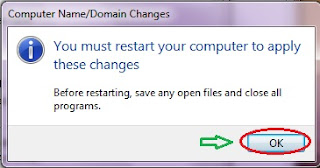
This message will appear
Click here to enlarge
Restart your computer then your WorkGroup will be created.
  • Give your IP Address:
  1. 1. Left Click and click link ‘Open Network and Sharing Center

    Click here to enlarge
    2. View your basic network information and set up connections
    I want to set local area connection, click on red area (on the picture) with link “Local Area Connection
    Click here to enlarge

    3. Local Area Connection Status
    See status near connectivity of each protocol ( IPv4 and IPv6), its state :
    No Internet access
    Click on Properties button.
    How to use Ultrasurf for Bypass Blocked Websites
    How To Open Blocked Websites with UltraVPN
    Click here to enlarge
4. Local Area Connection Properties
I only have IPv4 so I double click link :
Internet Protocol Version 4 (TCP/IPv4)
Click here to enlarge
5. Internet Protocol Version 4 (TCP/IPv4) Properties
I have following IP assigned from sysadmin :
  • IP address : 172.88.1.19
  • Subnet Mask : 255.255.252.0
  • Default Gateway : 172.88.1.3
  • DNS server : 172.88.1.10
I put all that information in the box provided as seen on the picture.
Click here to enlarge
Click OK
Recheck the status now and see status near IPv4 Connectivity :
Internet
In activity on sent and received section there are some number.
Click Close button.
Click here to enlarge
In red box area I highlight no cross sign and that also means Internet connection set up properly.Click here to enlarge
Open Internet Explorer and test open a website and as seen on picture its connected.
Click here to enlarge
Incoming search engine terms :
ipv4 connectivity no internet access, ipv4 no internet access, ipv6 connectivity no internet access, windows 7 no internet access, no internet access windows 7

Tuesday, May 17, 2011

Wireless router Powerful 3G or DSL functions to Wifi enable

1. Supports GRPS/EDGE,cdma2000 EVDO Rev.A, WCDMA HSDPA/HSUPA, TD-WCDMA HSPA protocol, widely supports 3G/3.5G/3.75G USB modems.
2. Supports auto dialup when power on, supports Auto APN function which can indentify your 3G modem  intelligently and start to dialup , truly plug and play.
3. Supports fixed time dialing,  many options can be choosen, such as a special time range, for instance, from 9:00 AM to 18:00 PM, or from Monday to Friday and so on.
4. Supports 3G online time statistics,  by this feature, you can easily know total online time that spent on 3G at any time.
5. With one 3G Router, one 3G Modem, it's most affordable way to share connectivity with computers, mobile phone, wifi enabled devices anywhere, whether in the office, at home, in the dormitory, in the factory, you can experience 3G low delay, high speed, high stability applications in the 3G signal coverage areas                                                                                                              

 Main functions
1.  Supports 3G, PPPoE, static IP, dynamic IP(DHCP) broadband functions.
2.  Wireless security 2 with 64bit/128-bit WEP, and WPA-PSK/WPA2-PSK support.
3.  Built-in SPI firewall, supports IP filtering, MAC filtering, Domain filtering.
4.  Block DDOS attacks from LAN support.
5.  Supports remote access control for web base access, remote Telnet.
6.  Supports Virtual Server, UPnP, Special Application, DMZ host ideal for creating a personal website within your LAN.
7.  WDS repeater function support.
8.  Built-in DHCP server with automatic dynamic IP address distribution.
9.  Friendly user interface, supports free web software updates
 50c2.jpg50c3.jpg350816027_447.jpg350816029_954.jpg

3.jpg
4.jpg

5.jpg

Make a single access point to internet via 3G or DSL Gateway on you home LAN

Brasil 24/7